
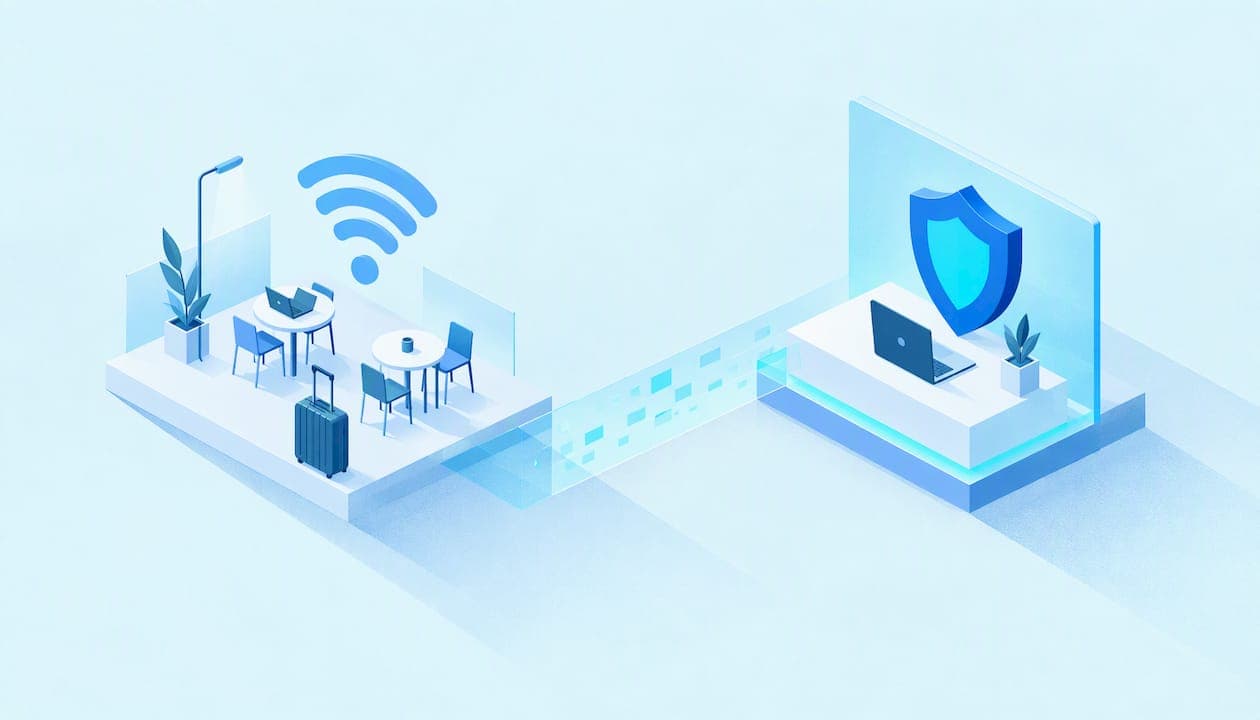
Public Wi-Fi is usually safe for ordinary browsing, and it is riskier than most people assume for everything else. The US Federal Trade Commission says connecting is usually safe because most websites use encryption. The danger sits in the exceptions: fake hotspots, sites without encryption, outdated devices and weak logins. This guide shows where the line is, what other people on the network can actually see, and how to set up your phone and laptop so a hotel, airport or café network is not a gamble.
TL;DR
- Most of the web is encrypted, so casual browsing on public Wi-Fi is usually fine. Unencrypted pages and fake hotspots are where trouble starts.
- The biggest practical risk is joining the wrong network. Confirm the exact network name with the venue before you connect.
- Keep devices updated, look for https, and protect important accounts with stronger authentication than a text message code.
- For banking, client work or developer credentials, add a layer: a VPN, or your own phone's hotspot.
- A VPN encrypts the traffic leaving your device on any network. We built Lockshield for exactly that moment, and it is sold as prepaid access with no auto-renewal.
Table of Contents
- The short answer: it depends on the network and on what you do
- Why browsing is safer than it used to be
- The real risks, in plain terms
- Can public Wi-Fi see your history?
- How to stay safe on public Wi-Fi: ten habits that work
- Messaging, social media, streaming and AI tools
- For developers: credentials, tokens and API calls
- Business travelers: build a travel routine
- When to skip public Wi-Fi entirely
- Choosing a VPN for public Wi-Fi
- Perspective: why we treat public Wi-Fi as a place for encryption by default
- Get protected before your next trip
- FAQ
- Sources
The short answer: it depends on the network and on what you do
Public Wi-Fi is not one thing. A hotspot with a password and sensible setup at a hotel is a different animal from an open network called "Free Airport WiFi" that anyone could have created from a laptop. Two factors decide how risky a session is.
The network. Is it the real one, run by the venue, or an imitation? Anyone sharing a network with you is in a position to try to watch traffic, and the more sophisticated the attacker, the more they can do. TechSafety Australia describes a range of methods, from passive sniffing of traffic to session hijacking and the creation of fake hotspots.
The traffic. Reading a news article exposes almost nothing. Logging in to a work dashboard, pasting an API key, or entering card details exposes a lot more if anything along the path is unprotected. The same network can be fine for one task and a poor choice for another.
So the honest answer to the question people type into Google is: safe enough for low-stakes browsing, worth protecting for anything you would not want a stranger to read.
Why browsing is safer than it used to be
Years ago, most websites sent data in plain text, and anyone on the same network could read it. Today, most sites use HTTPS, which encrypts the connection between your browser and the site. That is the reason the FTC can say that connecting is usually safe.
You can check this yourself. The FTC's public Wi-Fi security tips say to look for a lock symbol or "https" in the browser address bar. Your browser also warns you when a certificate looks wrong. Treat that warning as a stop sign, not an annoyance. Do not click through it on a network you do not control.
HTTPS has limits worth knowing:
- It protects the content of the page, but the network can still see which sites your device contacts.
- It only helps on sites and apps that use it. A single unencrypted page or a poorly built app can leak data.
- It does nothing if you are tricked into joining a fake network and then typing a password into a fake page.
The real risks, in plain terms
Official agencies on three continents describe the same short list of threats. Europol's public Wi-Fi infographic names rogue Wi-Fi networks, man-in-the-middle attacks and packet sniffing, and warns that unencrypted data such as passwords, email content and web searches can be intercepted. Canada's Get Cyber Safe campaign adds eavesdropping on Wi-Fi signals and fake "evil twin" hotspots built to lure people in.
| Risk | What it means | What reduces it |
|---|---|---|
| Rogue or evil twin hotspot | A network that copies a real name so you join the attacker's connection | Ask the venue for the exact network name; turn off auto-join |
| Man-in-the-middle attack | Someone positions themselves between you and the site you are using | HTTPS, heeding browser warnings, a VPN |
| Packet sniffing | Capturing traffic that travels unencrypted | Use https only; encrypt everything with a VPN |
| Session hijacking | Taking over a logged-in session | Log out, avoid sensitive accounts, strong authentication |
| Outdated software | Known flaws on your device that attackers exploit | Install updates before you travel |
The evil twin problem
This is the risk most readers underestimate. An attacker does not need to break into the hotel's network. They only need to broadcast a network with a similar name and wait. Your phone, set to connect automatically to a name it has seen before, may join without asking. From that point, your traffic passes through their equipment.
Can public Wi-Fi see your history?
Short answer: the network operator and, in some cases, an attacker on the same network can see more than you would like, but how much depends on encryption.
When you are connected to the same unsecured network, TechSafety notes that a hacker may intercept traffic, potentially seeing websites visited, usernames and passwords. On a properly encrypted site, the contents of your pages are hidden, but the fact that your device is talking to that site generally is not. Think of HTTPS as a sealed envelope: the address on the outside can still be read.
The network owner also sees connections passing through their own equipment. That is true of your home router and your mobile carrier as well, which is why a general rule helps: the less you rely on a network's goodwill, the better.

A VPN changes what the local network sees. Your device encrypts traffic and sends it to the VPN server, so the hotel or airport network sees an encrypted connection to the VPN rather than a list of the sites you visit. What the VPN provider itself can see depends on that provider, which is why you should choose one carefully, as covered below.
How to stay safe on public Wi-Fi: ten habits that work
- Confirm the network name. Canada's guidance is to ask the organization hosting the network for its Wi-Fi name before connecting. At a hotel, ask the front desk. At an airport, look for signage rather than picking the strongest signal.
- Turn off auto-join. Remove saved networks you no longer need and disable automatic connection to open networks.
- Keep everything updated. Canada's guidance says to keep phones, laptops and tablets updated so criminals cannot find holes in your security. Update before the trip, not in the airport lounge.
- Look for https. Check the lock symbol, as the FTC advises, and never ignore certificate warnings.
- Upgrade your login protection. CISA recommends moving away from SMS-based multi-factor authentication for high-value accounts, because it is not phishing-resistant and can be intercepted. Use an authenticator app or a hardware security key where you can.
- Postpone sensitive tasks. Banking, tax forms and payroll can wait for a trusted connection if you do not have protection in place.
- Log out when finished. It shortens the window for a hijacked session.
- Skip file sharing and network discovery. Set the network to public so your device does not advertise itself.
- Encrypt your traffic. A VPN adds a layer that does not depend on every site and app doing the right thing.
- Use your own hotspot when it matters. More on that below.
Messaging, social media, streaming and AI tools
Most of our readers do not think of themselves as targets. They are checking Instagram in a terminal, answering WhatsApp or Telegram messages in a hotel lobby, streaming YouTube on a long layover, or running an AI assistant to finish a document. The risk here is less about someone reading a video stream and more about your accounts.
- Account takeover is the main concern. Social, messaging and AI accounts often hold personal data, payment details and contacts. Turn on app-based two-factor authentication, not just SMS codes.
- Fake login pages reached through a rogue hotspot can imitate a service you use. If a familiar app suddenly asks you to sign in again right after you joined a new network, stop and disconnect.
- Captive portals (the sign-in page a hotel or airport shows) ask for emails, room numbers or names. Give the minimum and never reuse a real password there.
- Regional restrictions sometimes block apps while you travel. A VPN can help you reach the services you normally use, and it does so with an encrypted connection rather than an open one. Check local laws and the terms of the service before you rely on that.
For developers: credentials, tokens and API calls
If you push code, call APIs or manage servers from a hotel desk, the stakes are different. A leaked API key or SSH credential can cost far more than a hijacked social account.
CISA's remote access guidance makes a point that applies directly here: secure remote access depends on strong, phishing-resistant authentication, not only on securing the transport layer. Encryption of the connection is necessary, and it is not enough alone. In practice:
- Use hardware keys or passkeys for code hosting, cloud consoles and email.
- Keep tokens in environment variables or a secrets manager, never pasted into chat or shared documents.
- Use short-lived, scoped tokens when working away from the office, so a leak expires quickly.
- Always call APIs over HTTPS and verify certificates in your client code. Never disable verification to "get it working" on a flaky network.
- Route traffic through an encrypted tunnel when you work on untrusted networks. Linux users can run a VPN natively from the command line, which suits scripted and headless workflows.
Business travelers: build a travel routine
Frequent travelers carry company data through places they do not control. Australian Government cyber guidance recommends that people who travel often or for business consider dedicated travel devices and accounts, because they limit exposure if a device is compromised.
The same Australian guidance on travelling with mobile devices advises assuming a device may be compromised if it leaves your sight for inspection by foreign officials, or is lost or stolen and later returned. That is a good reason to carry only what you need, back up before you leave and keep sensitive material off the travel laptop.
A simple routine for a work trip:
- Update devices and apps a few days before departure.
- Remove saved networks and turn off auto-join.
- Install your VPN and sign in while you are still on a trusted connection.
- Set up app-based or key-based authentication on work accounts.
- Decide in advance which tasks wait for a trusted network.
When to skip public Wi-Fi entirely
Sometimes the best network is your own. The Australian Cyber Security Centre's business guidance says that when travelling, setting up a personal mobile hotspot is more secure than using public Wi-Fi.
Use your phone's hotspot when you are:
- Handling payroll, banking or anything involving client data.
- Working with credentials you cannot easily rotate.
- In a place where you cannot verify the network name.
- Doing a long video call or large upload, where a stable link also matters.
A hotspot and a VPN are not either-or. Many travelers use public Wi-Fi with a VPN for routine work, and switch to the hotspot for the most sensitive jobs.
Choosing a VPN for public Wi-Fi
A VPN is an additional layer, so choose it the way you would choose any security tool: by what it protects and what you must trust. Look for:
- Strong encryption across the whole connection, not just the browser.
- Apps for every device you carry, including phone, laptop and TV, so protection does not stop at one screen.
- Simple setup, because a tool you must fiddle with is a tool you skip when you are in a hurry.
- Clear billing: know what you pay, for how long, and whether it renews on its own.
- Linux support if you work in a terminal or run servers.
Perspective: why we treat public Wi-Fi as a place for encryption by default
We built Lockshield around a simple observation: the people who work on the move rarely get to choose their network. A hotel, an airport lounge or a conference hall hands you a connection, and your job continues regardless.
Our view is that the sensible default on a network you did not set up is to encrypt everything leaving your device. Browsers have made HTTPS common, and that is good progress. But apps, background services and developer tools do not all behave the same way, and you cannot audit each one in a departure lounge. A VPN covers the whole device in one step.
That is why we designed the service for quick deployment and easy configuration. Our encryption is designed to protect traffic in public environments, our apps cover iOS, Android, macOS, Windows, Linux and TV, and our native Linux support is meant for professionals and businesses who need to integrate secure connectivity into the way they already work.
We also think billing should be as plain as the protection. You pay once for a prepaid period of 1, 3, 6 or 12 months. There is no subscription and no auto-renewal to remember to cancel.
the author
Get protected before your next trip
If you travel for work, run API calls from hotel rooms or simply want your Instagram, Telegram, WhatsApp, Facebook, YouTube and AI accounts to stay on an encrypted connection, Lockshield VPN is built for that. Install it while you are on a trusted network, connect once you land and carry on.

You choose a prepaid period of 1, 3, 6 or 12 months, and nothing renews unless you buy again. Apps for every major platform are listed on our VPN apps page, and you can get Lockshield VPN from the main site.
FAQ
Is it safe to use public Wi-Fi for banking?
It is better to avoid it unless you have added protection. Banking sites use HTTPS, but a fake hotspot or a tricked login can still put your credentials at risk. Use your phone's mobile hotspot or an encrypted VPN connection, and turn on app-based two-factor authentication for the account.
Can someone on public Wi-Fi see my passwords?
On an encrypted site, passwords are protected in transit, so a casual snoop cannot read them. On an unencrypted page or a fake network, a skilled attacker may capture them. Check for https, never ignore browser warnings and verify the network name with the venue.
Does a VPN make public Wi-Fi completely safe?
No single tool does. A VPN encrypts the traffic leaving your device, which protects it from the local network. You still need updated devices, strong authentication and caution with login pages and links. Together these cover the main risks described above.
What should I do if I think I joined a fake hotspot?
Disconnect right away and forget the network on your device. Then change passwords for any account you used, starting with email, and turn on stronger authentication. If it was a work device, tell your IT or security team the same day.
Is hotel Wi-Fi safer than airport Wi-Fi?
Not automatically. Both are shared networks, and both can be imitated by a rogue hotspot. A hotel network with a room-specific password is somewhat harder for outsiders to join, but you should still confirm the network name and consider encrypting your traffic.
Sources
- Are Public Wi-Fi Networks Safe? What You Need To Know, FTC
- Public Wi-Fi Networks: Security Tips, FTC Consumer Advice
- Risks of using public Wi-Fi, Europol infographic
- Public Wi-Fi, Get Cyber Safe (Government of Canada)
- Should I really be worried about public Wi-Fi?, TechSafety Australia
- Mobile Communications Best Practice Guidance, CISA
- Remote User Use Case, CISA TIC 3.0
- Travelling with mobile devices, Cyber.gov.au
- Practical Cyber Security Tips for Business Leaders, Cyber.gov.au